
If you produce content for YouTube—whether you’re a beginner vlogger, gaming creator, filmmaker, or educator—your storage system is one of the most important tools in your setup. Cameras are getting better, resolutions are rising, video files are heavier, and editing applications are more demanding than ever. Yet many creators underestimate how crucial proper storage is to their workflow.
This blog breaks down everything you need to know about hard disk requirements as a YouTube content creator: how much space you actually need, SSD vs HDD choices, backup strategies, NAS options, and practical recommendations tailored for different creator levels.
1. Why Storage Matters So Much for YouTube Workflows
Video files, especially in high resolution (4K/6K/8K), are enormous. As a creator, your hard disk doesn’t just store your footage—it impacts:
- Editing speed
- Rendering performance
- Access to project archives
- Backup reliability
- Long-term content security
- Your ability to scale as your channel grows
A well-planned storage solution means less waiting, more creating, and zero anxiety about losing files.
2. Understanding File Sizes for Different YouTube Content
Here are typical file sizes based on common camera formats and resolutions. This will help determine your storage needs.
1080p Content
- DSLR or mirrorless cameras: 1–3 GB per 10 minutes
- OBS screen recordings (gaming): 5–8 GB per 10 minutes
- Smartphone footage: 0.8–2 GB per 10 minutes
Best for: new creators or talking-head style videos.
4K Content
- Mirrorless/DSLR cameras shooting 4K 100Mbps: 7–10 GB per 10 minutes
- High bitrate cameras (e.g., log or 10-bit footage): 15–20 GB per 10 minutes
- ProRes 4K HQ: 25–30 GB per 10 minutes
Most YouTubers now shoot in 4K even if they export in 1080p, because of better post-production flexibility.
6K/8K Content
- Cinema cameras (e.g., RAW formats): 40–80 GB per 10 minutes
- Used by filmmakers, cinematic creators, or high-end commercial YouTube channels.
Verdict: Higher resolution = exponentially more storage needs.
3. SSD vs HDD: What Should a YouTube Creator Use?
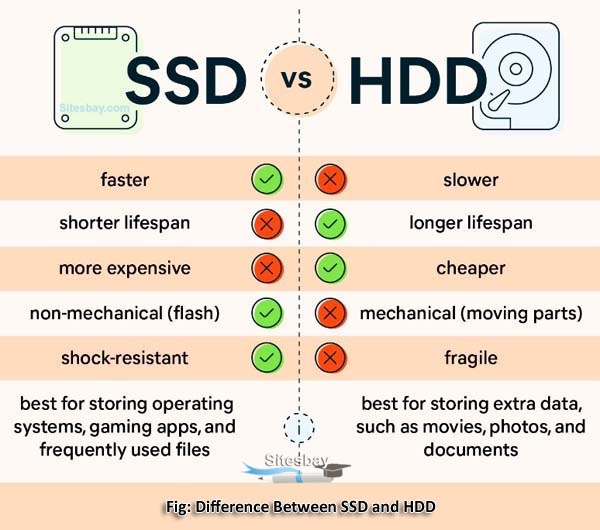


HDD (Hard Disk Drive)
Pros:
- Cheap cost per TB
- Excellent for long-term archiving
- Large capacity (8TB–20TB options)
Cons:
- Slow read/write speeds
- Not ideal for active editing
- Less shock resistant
Use HDD for:
- Storing old footage
- Backups
- Large archives
SSD (Solid State Drive)
Pros:
- Much faster read/write speeds
- Best for active editing
- Compact and durable
Cons:
- More expensive per TB
- Limited high-capacity options
Use SSD for:
- Current projects
- Editing directly from the drive
- Travel or mobile workflows
The Ideal Setup
Most YouTubers use both:
- Primary editing drive: SSD (1TB–4TB)
- Archive drive: HDD (4TB–16TB)
This hybrid setup gives the best balance of speed + storage + affordability.
4. How Much Storage Does a YouTube Creator Really Need? (Beginner → Advanced)
Let’s break down realistic storage requirements based on your level.
Beginner Creator (0–1 Year Experience)
Typical content: talking-head videos, vlogs, reaction videos, simple edits.
Resolution: 1080p or entry-level 4K.
Monthly footage: 50–100GB.
Recommended Storage:
- 500GB–1TB SSD (working files)
- 2–4TB HDD (archive)
This setup is affordable and enough for 1–2 years of videos.
Intermediate Creator (1–3 Years on YouTube)
Typical content: 4K videos, multi-camera setups, gaming with OBS, drone footage.
Monthly footage: 200–500GB.
Recommended Storage:
- 1–2TB NVMe SSD for editing
- 8–12TB HDD for archiving
- Optional: External SSD for travel
Creators at this level often benefit from faster NVMe SSDs or RAID systems.
Professional Creator / Filmmaker
Typical content: 4K 10-bit, 6K/8K RAW, cinematic projects, brand shoots.
Monthly footage: 1TB–4TB.
Recommended Storage:
- 4TB NVMe SSD project drive
- 16–40TB HDD RAID for archives
- Network Attached Storage (NAS) for teams
Professionals must maintain redundant backups because losing footage is not an option.
5. Internal vs External Drives: Which Should You Choose?
Internal Drives
Best for: desktop creators using PC towers.
- NVMe SSDs deliver ultra-fast speeds
- Perfect for heavy timeline scrubbing
- More reliable than external USB devices
- Cheaper per TB compared to portable SSDs
External Drives
Best for: laptop creators, travel vloggers, or those without space for extra internal drives.
- Portable
- Bus-powered (no extra cables)
- Great for on-the-go editing
Tip: Choose external SSDs with USB-C or Thunderbolt 3/4 for maximum speed.
6. Choosing the Right Drive Size for Editing Software
If you’re using editing tools like Adobe Premiere Pro, Final Cut Pro, or DaVinci Resolve, note that these applications generate:
- Cache files
- Proxies
- Previews
- Autosaves
- Media databases
These can consume 30–200GB depending on your projects.
Solution:
Use a dedicated SSD for cache/proxy files to keep your system fast.
7. Backup Strategy for YouTubers (3-2-1 Rule)
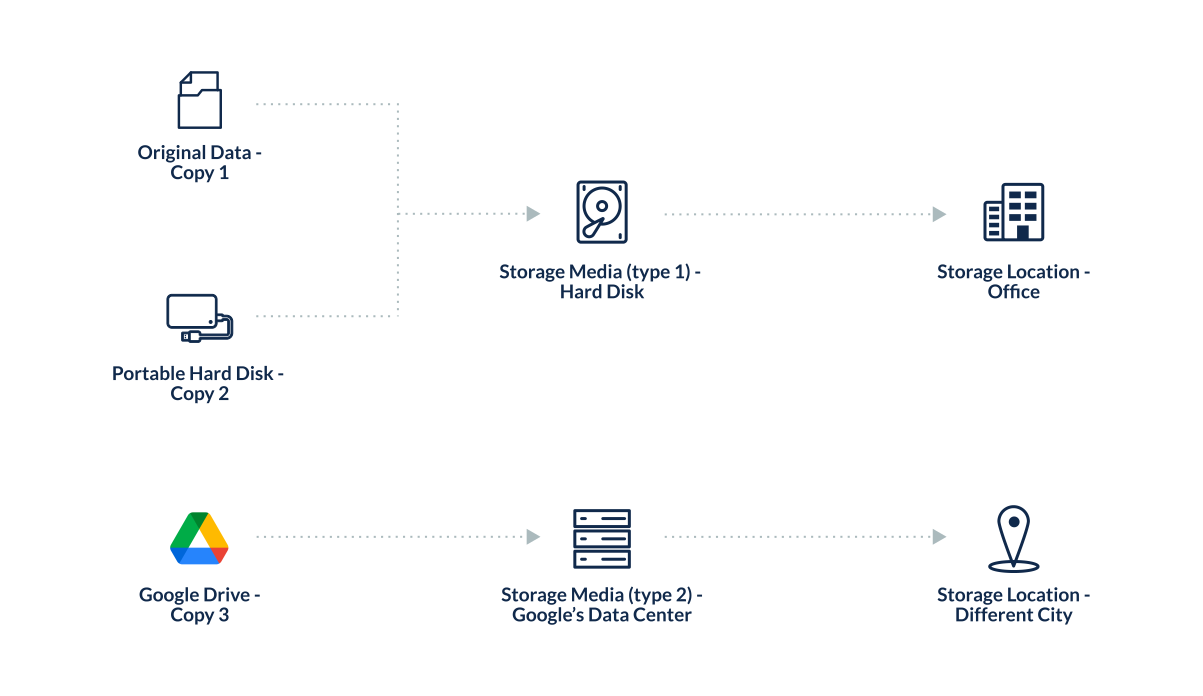
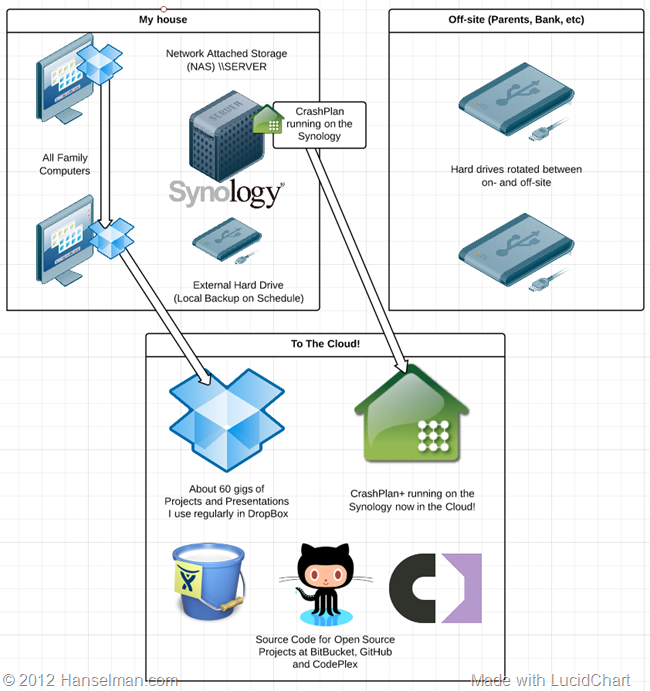
The gold standard for video creators:
3 Copies of Your Data
- Your main working files
- Backup drive
- Offsite backup or cloud storage
2 Different Storage Mediums
- SSD + HDD
- HDD + cloud
- NAS + external drives
1 Copy Stored Offsite
- Cloud service
- Remote backup drive
- NAS stored in another location
Never store all footage on a single drive—if it fails, everything is gone.
8. Should You Use NAS for YouTube Content Creation?
A Network Attached Storage (NAS) is a multi-drive storage server you access over Wi-Fi or Ethernet.
NAS Is Ideal For:
- Teams or multi-editor channels
- Large archives
- 4K/6K/8K creators
- Anyone who needs RAID protection
- Storing footage for years
Pros
- Expands easily
- Central storage for multiple devices
- RAID redundancy
- Remote access to your files
Cons
- Expensive
- Requires setup knowledge
- Not as fast as local NVMe drives for editing
Many creators use NAS for long-term storage, not active editing.
9. Example Storage Workflow for YouTubers
Here’s a practical workflow used by many full-time creators.
Step 1: Copy RAW footage to SSD
- Fast access
- Ideal for editing
Step 2: Create proxies (if needed)
- Speeds up editing heavy footage
Step 3: Edit directly from SSD
Step 4: On project completion
- Move final project files + RAW footage to HDD or NAS
- Delete cache from SSD to free space
Step 5: Maintain a backup
- Keep duplicate copies on another HDD or cloud
This ensures:
- Smooth editing
- Reliable archiving
- No lost footageBuy Now
10. Recommended Drive Options (General Guidance Only)
Best SSDs for YouTube Creators
- NVMe SSDs (Samsung 980 Pro, WD Black SN850, etc.)
- Portable SSDs (SanDisk Extreme Portable SSD, Samsung T7/T9)
Best HDDs
- Seagate IronWolf 8–18TB
- WD Red/Red Plus 6–20TB
Best for NAS
- WD Red Pro
- Seagate IronWolf Pro
Best for Travel
- Rugged SSDs
- USB-C SSDs
(These are general category examples, not endorsements.)
11. How to Calculate Your Personal Storage Needs
Use this formula:
Monthly Footage × 12 Months × 2 Years + 20% Buffer
Example:
- You shoot 200GB per month
- 200 × 12 × 2 = 4.8TB
- Add 20% = ~5.7TB
So you need:
- 1–2TB SSD for active work
- 6–8TB HDD for archives Buy Now
12. Tips to Manage Storage Efficiently
- Delete unused clips
Don’t store footage you’ll never use. - Use proxies for editing
Save space and speed up performance. - Compress finished videos
MP4 exports are much smaller than RAW. - Clear cache regularly
Some editors accumulate 100GB+ in cache. - Organize your folders
Avoid chaos—sort projects by date and type. - Label drives clearly
Helps when juggling multiple disks. Buy Now
13. Future-Proofing Your Storage (5-Year Outlook)
YouTube creators are steadily moving toward:
- 4K becoming the minimum
- 6K/8K becoming mainstream
- Higher bitrate formats (10-bit, log, RAW)
- Long-form and multi-camera shoots
This means bigger file sizes are inevitable.
To future-proof your storage:
- Choose at least 8TB+ HDD archive systems
- Use NVMe SSDs rather than SATA SSDs
- Consider moving to NAS as your channel grows
- Adopt a strong backup strategy early